
Access control entries define the security configuration for a given tree node – account, printer, print queue, server, or service. Each entry consists of the security role and a user or group to which this role is granted when accessing this particular tree node. For example, if an access control entry with user admin and role Administrators exists, it means that user admin has full administrative permissions on that tree node.
Default settings
Access controls are inherited by default so that all sub-elements of the tree acquire the same configuration. Inherited access controls are greyed out and cannot be modified or deleted. You can override inherited access controls in the child nodes or add more entries for users from sub-accounts.
The following screenshot shows how the access control list is displayed on the Customer 1 node for the user from Acme Corporation vendor:
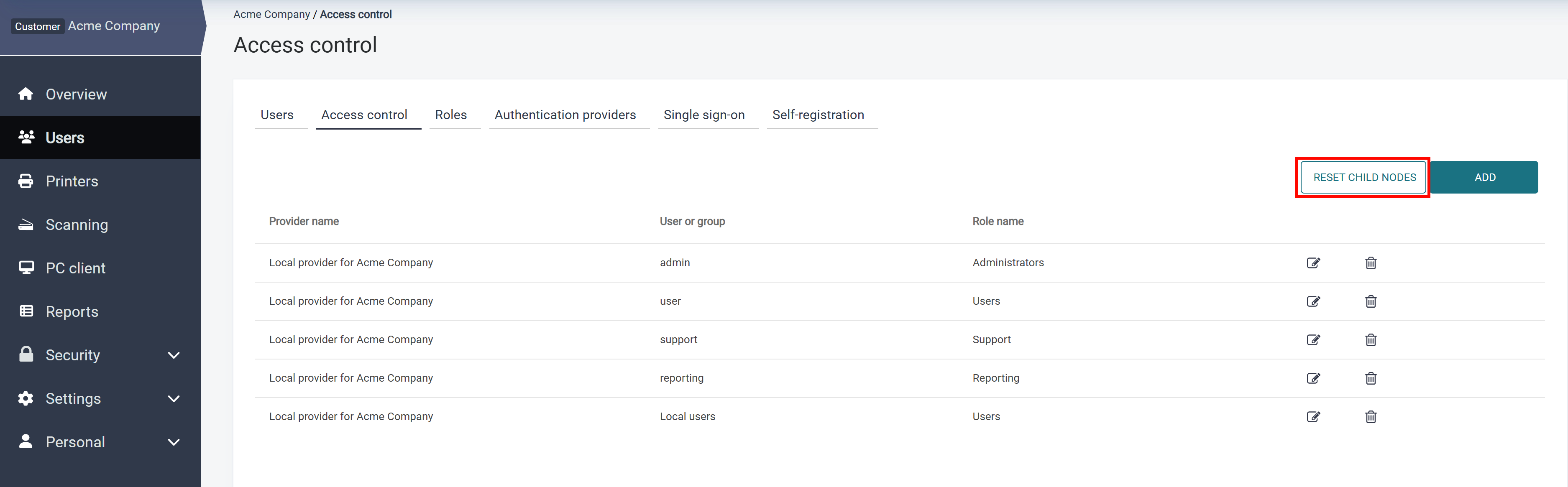
Which access controls are displayed depends on the user viewing the current node. Given the following hierarchy,
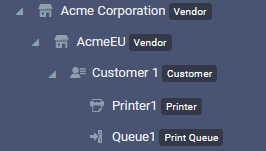
the top-level administrator of the Acme Corporation vendor can see all access control definitions for all the nodes. The users who are logged in for AcmeEU account will not be able to see, change, or override access control definitions inherited from the parent Acme Corporation node. The users from Customer 1 account will only see and be able to manage access controls defined in that account.
Changing default inheritance of access controls for child nodes
Be careful when changing the default inheritance for the access controls. Make sure you understand the effects of this action beforehand.
You can restore the default inherited access controls on customer account child nodes by clicking Reset child nodes.
To see this button in Access Control, you must have the PropagateAccessControl permission.
Reset child nodes
The reset child nodes action will remove overridden access controls from child nodes.
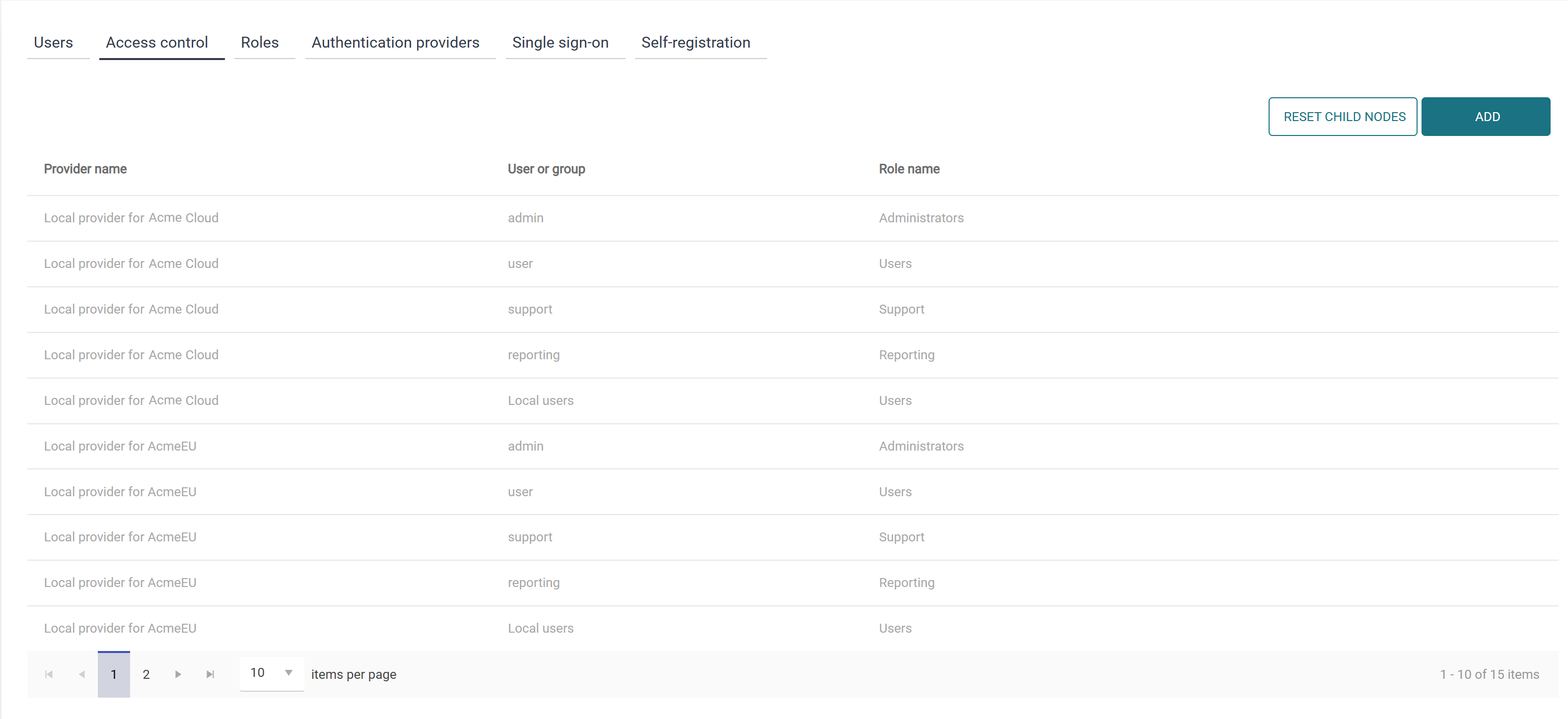
Following up on the example above, in the Customer 1 node, click Reset child nodes and confirm the action. You will then see that the access controls originating in the Customer 1 node are now inherited, as per default:
Creating Access control records
Creating Access control records involves selecting a user or group and assigning it a role.
The search options for the user or group depend on the type and configuration of the authentication provider you create the record for. Differences in search functionality across authentication providers are described in the “Limitations in user and group search functionality” section below.
Perform the following steps to assign a role to a user or a group:
-
On the Users page in Access control tab, click Add to create a new Access control entry. A new dialog window will open.
-
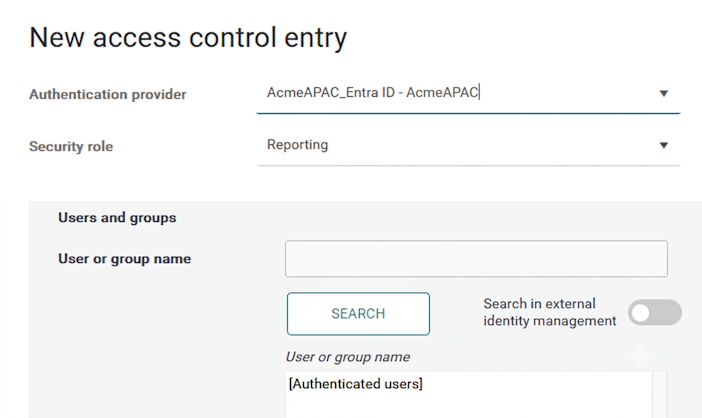
In Authentication provider, select the authentication provider for which you want to create the new access control entry.
-
In Security role, select the role that you want to assign to your users or groups. For creating, editing, or deleting roles see Roles. The roles available by default are:
-
Users
-
Support
-
Reporting
-
Administrators
-
-
You can assign the Security role either to a particular user/group or to all authenticated users:
-
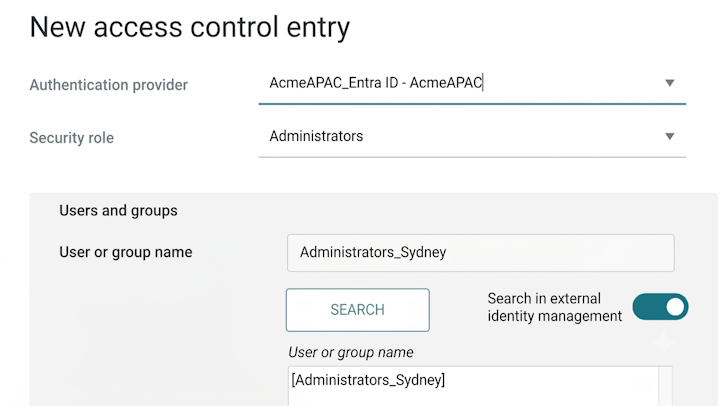
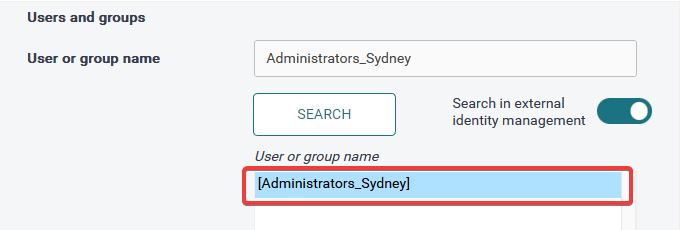
If you wish to search for a particular user or group in your authentication provider, enter the user or group name in the User or group name field. In the following example, you have a group called "Administrators_Sydney" in your identity provider, and you wish to assign the Administrators role to its members.
-
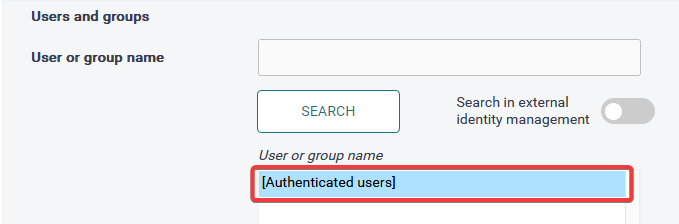
In the following example, you wish to assign the Reporting role to all authenticated users. In such a case, leave the User or group name field blank and click Search.
-
-
Click Search.
-
Select the user or group that has been found.
-
Example for Administrators:
-
Example for all authenticated users:
-
Hints:
-
You can search for any string of characters in the username. When searching a provider that uses the email address of the user as their username, you can search for a common value, such as “.com”, to retrieve a list of multiple users.
-
You can create several Access Control records simultaneously by selecting multiple entries from the list – hold
CTRLorSHIFTand left-click the desired individual items, or range, respectively.
-
-
-
Click Save to create the access control record.
Limitations in user and group search functionality
The user and group search functionality depends on the authentication provider's type and configuration. Its limitations depend on whether Dispatcher Paragon Cloud can access users and groups in the external identity management.
Specific OIDC-only authentication providers
Includes:
-
Microsoft Entra ID (with OIDC authentication enabled, and Service account authentication disabled)
-
Google (with OIDC authentication enabled, and Service account authentication disabled)
-
OKTA (with OIDC authentication enabled, and Service account authentication disabled)
Such authentication providers don’t have direct visibility into external identity management systems, but Dispatcher Paragon Cloud can leverage their specific APIs and get a temporary access this information.
An alternative to creating an Access control record without granting Dispatcher Paragon Cloud temporary access to the external identity management system is to use the Cloud API. See the section "Creating Access control records via Cloud API” below.
When creating an Access control record with this authentication provider, you will see a switch to enable or disable “Search in external identity management”.
When this switch is disabled, only local search is performed. That means only users who have already logged in to Dispatcher Paragon Cloud and groups that are already known by Dispatcher Paragon Cloud can be searched. This can be limiting, especially if you want to select a group, as the system will only know the group locally once you have already assigned an Access control record to it.
To search for a user who has not logged in yet or a group that has not yet been assigned an Access control record, you will need to enable the external search switch and grant one-time temporary access to your external identity management system’s users and groups. The first time an administrator searches externally, they will be prompted to authorize additional delegated permissions in their Identity Provider.
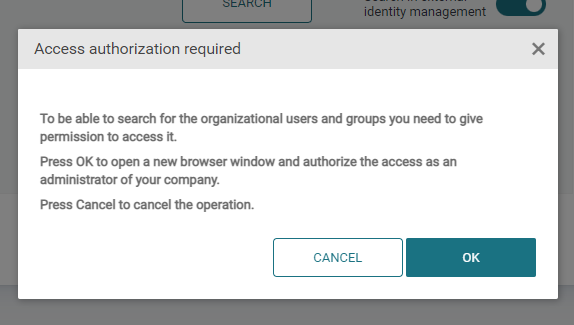
This process may require the authorizer to have administrative rights in the Identity Provider as well. The additional delegated permissions that will be added to the application registration for each provider are:
|
Identity Provider |
User Search Permission |
Group Search Permission |
|---|---|---|
|
Microsoft Entra |
|
|
|
Okta |
|
|
|
|
|
|
After successful authentication, close the browser tab, and click Search again to complete the access control mapping.
Client (OAuth2) authentication providers
Includes: Any Client (OAuth2) authentication provider
Such authentication providers don’t have direct visibility into external identity management systems.
Only users that already logged in to the system can be searched.
Groups need to be manually synchronized into Dispatcher Paragon Cloud before they can be searched when creating an Access control record. Administrators can perform a one-time synchronization of all groups in the external identity management system, so these groups can then be used during Access control record creation. Navigate to the documentation page of your authentication provider type for more info on how to perform the group sync.
An alternative to creating an Access control record without granting Dispatcher Paragon Cloud temporary access to the external identity management system is to use the Cloud API. See the section "Creating Access control records via Cloud API” below.
Generic OIDC authentication provider
Includes: Generic OIDC authentication provider
This authentication provider has no means to connect to the external identity management system to access the users and groups. Therefore, only users who have already logged in to Dispatcher Paragon Cloud can be assigned a role. Similarly, only the predefined “Authenticated users” group can be assigned a role.
An alternative to creating an Access control record is to use the Cloud API. See the section "Creating Access control records via Cloud API” below.
Authentication providers with Service access
Includes:
-
Microsoft Entra ID (with Service account authentication enabled)
-
Google (with Service account authentication enabled)
-
OKTA (with Service account authentication enabled)
-
LDAP
Such authentication providers have direct visibility into external identity management systems and, therefore, searching for users and groups is not limited.
Creating Access control records via Cloud API
This option is highly technical and requires specific skills to perform API calls, manage API keys, and related tasks. Please, proceed with caution. If unsure, contact Dispatcher Paragon Cloud representative for help with this approach.
It is also possible to use the Cloud API to create new Access control records. While this option is highly technical, it allows creating Access control records when the standard web form is insufficient. For example, this option can be used when the administrator doesn’t want to give Dispatcher Paragon Cloud access to external identity management.
Creating an Access control record can be done via the Add access control API endpoint on API Functions. When creating a mapping for an external group, the groupDn parameter must contain the exact representation of the group returned by the external identity management system during the user’s authentication; otherwise, the group names won’t match.