
Registering your card
See Card registration at the MFD.
Logging in and out
Logging in
-
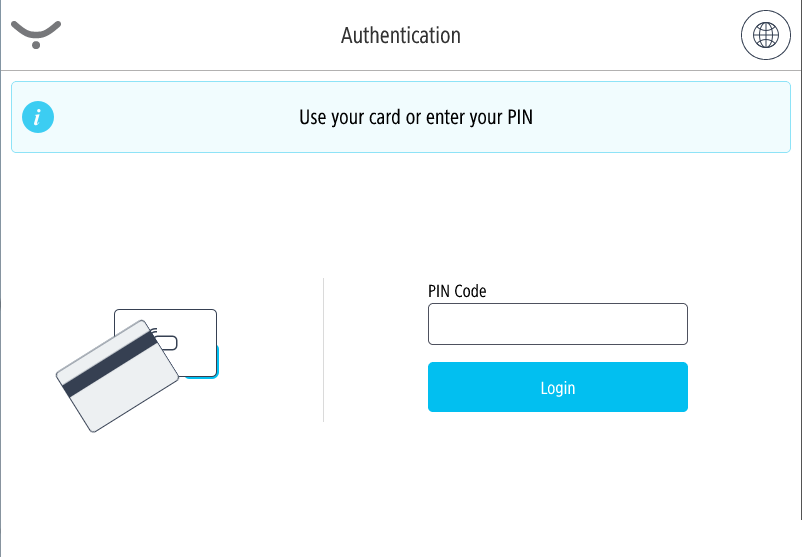
The authentication method depends on how your administrator configured the terminal. You can log in via PIN (Short ID) or username/password. Follow the instructions on the screen.
Example for login method Card or PIN:
-
You will see the device home screen – navigate to Print and Scan application.
-
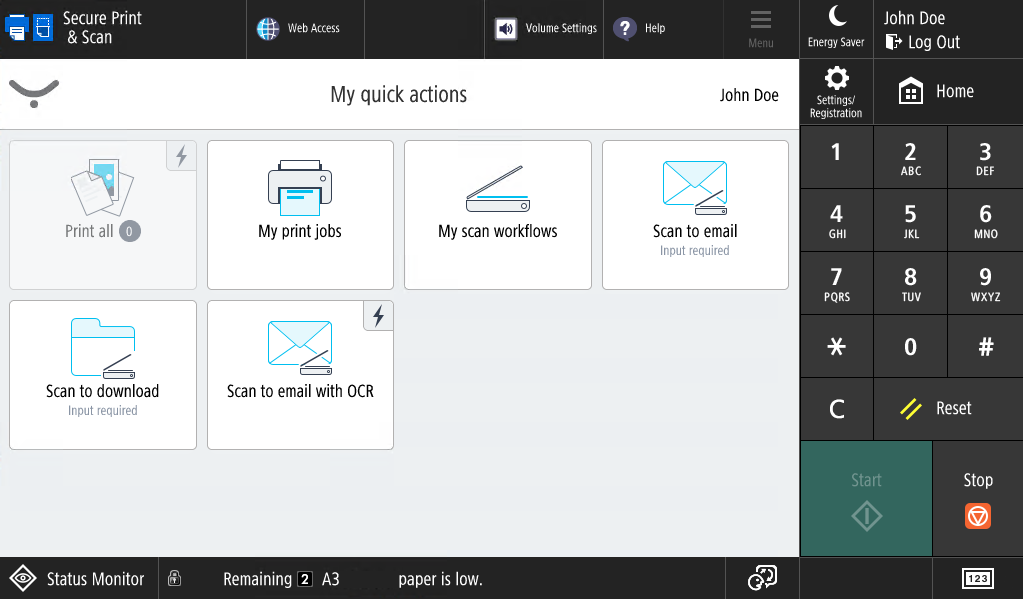
You will see the Cloud Terminal home screen – My quick actions application.
-
If the authentication fails, you will see an error message saying "Invalid credentials”
-
To change the language during authentication, tap the language icon in the top-right corner.
Logging out
Tap the logout button in the right-hand top corner of the screen.
If the terminal is configured to use authentication by card, you can also log out by placing your card on the card reader.
My quick actions applications
My quick actions application allows you to access frequently used functions, such as print all jobs. The quick action buttons are displayed according to your rights and scan workflows assigned to you.
Printing and managing jobs
-
Log in to the Cloud Terminal. Open Secure Print & Scan application.
-
If you wish to release all of your print jobs, tap Print all.
-
If you wish to release only a specific print job or jobs, tap My print jobs.
-
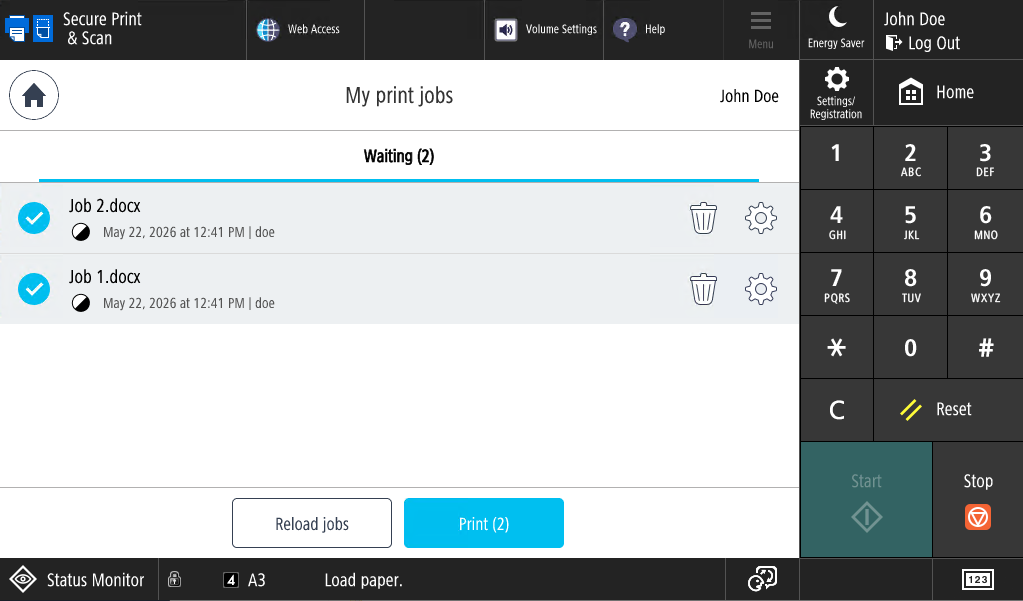
My print jobs screen will be displayed. Select the print job(s) you wish to print from the list and tap Print. You may also delete jobs by tapping Trash icon.
-
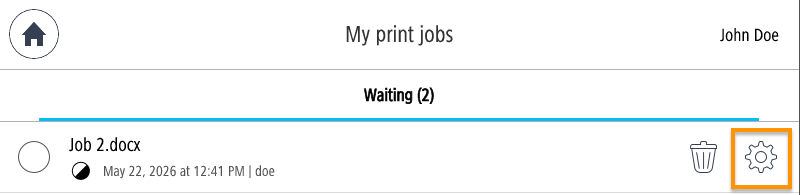
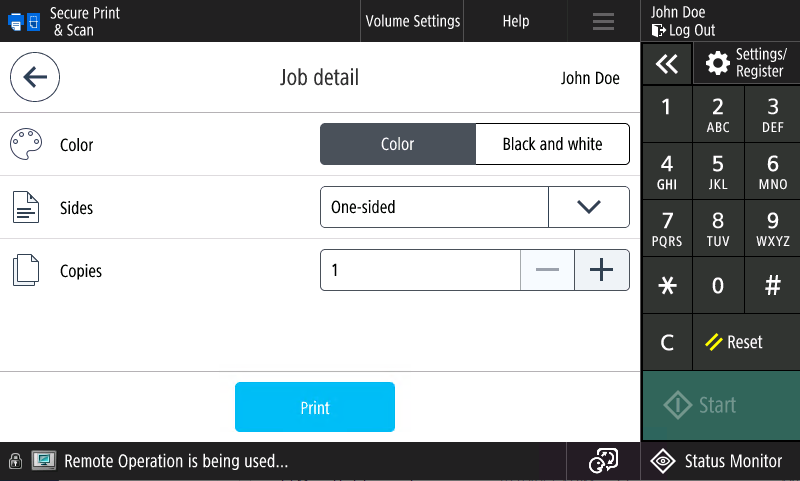
To modify the finishing options (Color, Sides, and Number of copies) before printing, tap the cogwheel icon next to the job.
-
Change the settings according to your needs and tap Print.
-
The Color option is not present on MFDs that don't support color printing.
-
In Sides, you can select between One-sided, Flip on Long Edge and Flip on Short Edge.
-
The range for the number of copies is between 1 and 1000. You can modify the number by tapping the plus and minus buttons or by entering it directly into the text field.
-
-
After the job has been delivered, a success message will appear.